
Canva Tutorial for Business to Make Professional Flyers
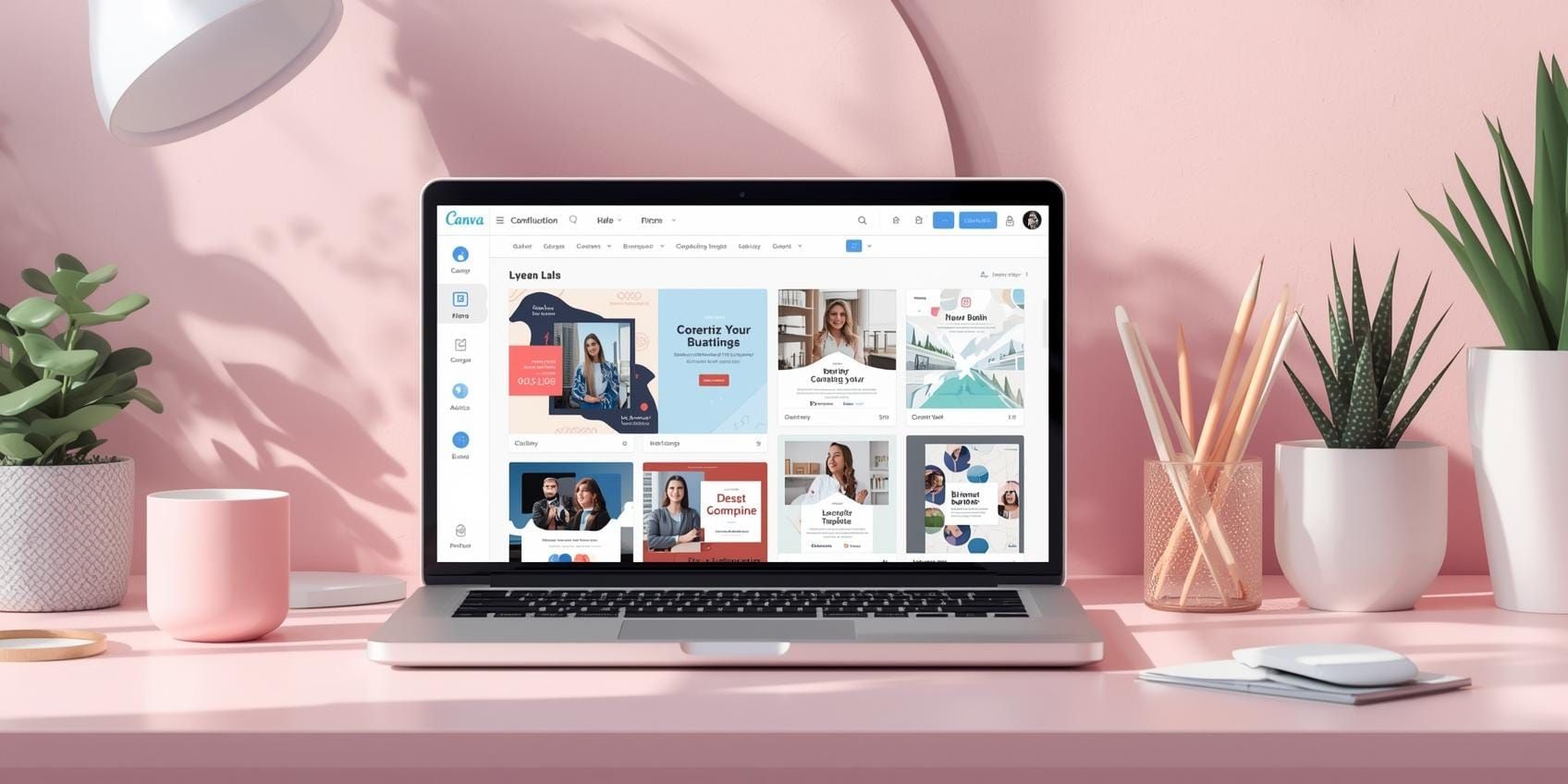
If you’re a small business owner, you don’t need to be a designer to create a flyer that looks professional. You just need a repeatable system. This Canva tutorial for business walks you through a simple process: pick the right flyer size, set up your branding, choose a clean layout, write clear copy, and export correctly for print or social. Once you do it once, your next flyers become quick. This also can be opportunity creative business ideas for busy people with limited time.
So, this guide is built for real business needs like promos, menus, events, price lists, and announcements.
What Makes a Flyer Look Professional
A professional flyer usually has three things:
- clear hierarchy (people know what to read first)
- consistent branding (colors and fonts feel intentional)
- clean spacing (nothing feels cramped)
Most amateur flyers fail because they try to say too much at once. In this Canva tutorial for business, you’ll learn how to simplify and still sell.
1. Choose The Right Flyer Size
Before you open Canva, decide where the flyer will live.
Common flyer sizes
- A4: best for print in many countries, notices, menus
- US Letter: common for print in the US
- A5: great for handouts and counter flyers
- Instagram post/story: best for digital promos
Rule: choose one primary size first. You can resize later, but start with the real purpose.
2. Set Up Your Brand Kit Basics
If you want your flyers to look consistent, you need 2 minutes of setup.
What to decide (keep it simple)
- 2 brand colors (one main, one accent)
- 1 neutral (black/white/gray)
- 2 fonts (one headline, one body)
- logo file (PNG with transparent background if possible)
Even if you don’t use Canva’s Brand Kit feature, you can create a “starter flyer template” and duplicate it each time. That’s how this Canva tutorial for business saves time.
3. Canva Tutorial for Business about Pick a Template The Smart Way
Templates are helpful, but not all templates are good for business.
How to choose a template that looks premium
- pick layouts with more whitespace
- choose designs with 2-3 text styles max
- avoid heavy decorations and too many icons
- check if it still looks good in black and white
Tip: search Canva with specific keywords like:
- “minimal flyer”
- “sale flyer modern”
- “menu flyer clean”
- “event flyer simple”
A clean template makes this Canva tutorial for business work faster because you’re editing, not rebuilding.
4. Canva Tutorial for Business about Use a Simple Layout Formula
Here’s a layout formula that works for most flyers.
The 5-block flyer structure
- Headline (what it is)
- Subheadline (who it’s for or the key promise)
- Offer details (price, dates, what’s included)
- Proof (testimonial, rating, or “trusted by” line)
- Call to action (how to order, where to go)
If you follow this, your Canva tutorial for business flyers will feel structured and easy to scan.
Also Read: Canva AI Tutorial: Step-by-Step for New Users
5. Canva Tutorial for Business about Write Copy that Fits a Flyer
Flyer copy should be short and specific. People skim.
Flyer copy rules
- keep headline under 8 words
- use numbers (dates, prices, discounts)
- avoid long paragraphs
- keep CTA very clear: “Order via WhatsApp” or “Visit our store”
Example: weak vs strong copy
Weak: “We have great products with amazing quality.”
Strong: “Fresh brownies today. Buy 2 get 1 free. Pickup 3-7 PM.”
Good copy is half of “design.” This is why a Canva tutorial for business should include writing, not just visuals.
6. Canva Tutorial for Business about Typography Rules that Instantly Look Better
Typography is where flyers look “pro” or “DIY.”
Simple typography rules
- use one headline font and one body font
- keep body text readable (don’t go too small)
- don’t stretch fonts
- avoid using more than 2-3 different font sizes
When your fonts are clean, your Canva tutorial for business flyers will feel more trustworthy.
7. Canva Tutorial for Business about Color Rules that Stay On-Brand
Color is powerful, but too many colors looks chaotic.
A simple color ratio
- 70% white/neutral
- 20% main brand color
- 10% accent color
Quick tips
- use your accent color only for CTA or price
- keep backgrounds simple
- check contrast: text must be readable
If it’s hard to read, it won’t convert. A good Canva tutorial for business always prioritizes readability.
8. Canva Tutorial for Business about Use Photos and Icons The Right Way
Photos can make a flyer look premium, but only if they’re consistent.
Photo rules
- use 1 strong photo, not 5 average ones
- keep lighting consistent (avoid mixing styles)
- crop tightly for impact
Icon rules
- pick one icon style and stick to it
- use icons as signals, not decoration
- keep them small and clean
If you’re selling food, product photos matter. If you’re selling services, icons and clean typography often work better. This Canva tutorial for business works for both.
Also Read: Canva for Students: How to Create Stunning Designs Easily
9. Canva Tutorial for Business about Align Everything with Guides
Misalignment is the fastest way to make a flyer look unprofessional.
What to do in Canva
- turn on Rulers/Guides (if available)
- use the Position tool to align left/center
- keep equal spacing between sections
Quick check: zoom out to see the whole flyer. If it feels messy from far away, simplify.
10. Canva Tutorial for Business about Create a Flyer Template You Can Reuse
This is the “business owner cheat code.” Don’t design from scratch each time.
What to save in your template
- headline style
- body text style
- CTA button style
- logo position
- your brand colors
- a photo placeholder frame
Then duplicate and update the content. That’s how a Canva tutorial for business becomes a real system.
Canva Tutorial for Business Print Setup and Export Tips
If you’re printing, export settings matter.
Print checklist
- add bleed if your design goes to the edge
- keep important text away from edges
- use high-resolution images
Best export choices
- PDF Print for printing
- PNG for social sharing
- JPG for quick sharing (smaller file)
If your printer asks for CMYK, Canva may not always export in CMYK depending on plan/features, so confirm with the print shop. The safest approach, send a PDF Print and ask for a proof.
Canva Tutorial for Business Flyers that Convert
A flyer isn’t art. It’s communication. Before you publish, ask:
- Can someone understand it in 3 seconds?
- Is the offer clear?
- Is the CTA obvious?
- Does it look consistent with my brand?
If yes, you’re good. That’s the practical side of this Canva tutorial for business.
Also Read: Canva Logo Design Tutorial: A Simple Guide For Creators
Conclusion
Professional flyers come from simple rules, not fancy design. With this Canva tutorial for business, you can make flyers that look clean, readable, and on-brand. Choose the right size, use a consistent template, keep typography simple, control color, and export properly for print or social.

For high-quality fonts to boost your income, check out DM Letter Studio. Our professional fonts are perfect for branding, marketing, and content creation. So, don’t miss this opportunity.
Comments are closed.