
Figma Grid Tutorial: How to Create Better UI Layouts
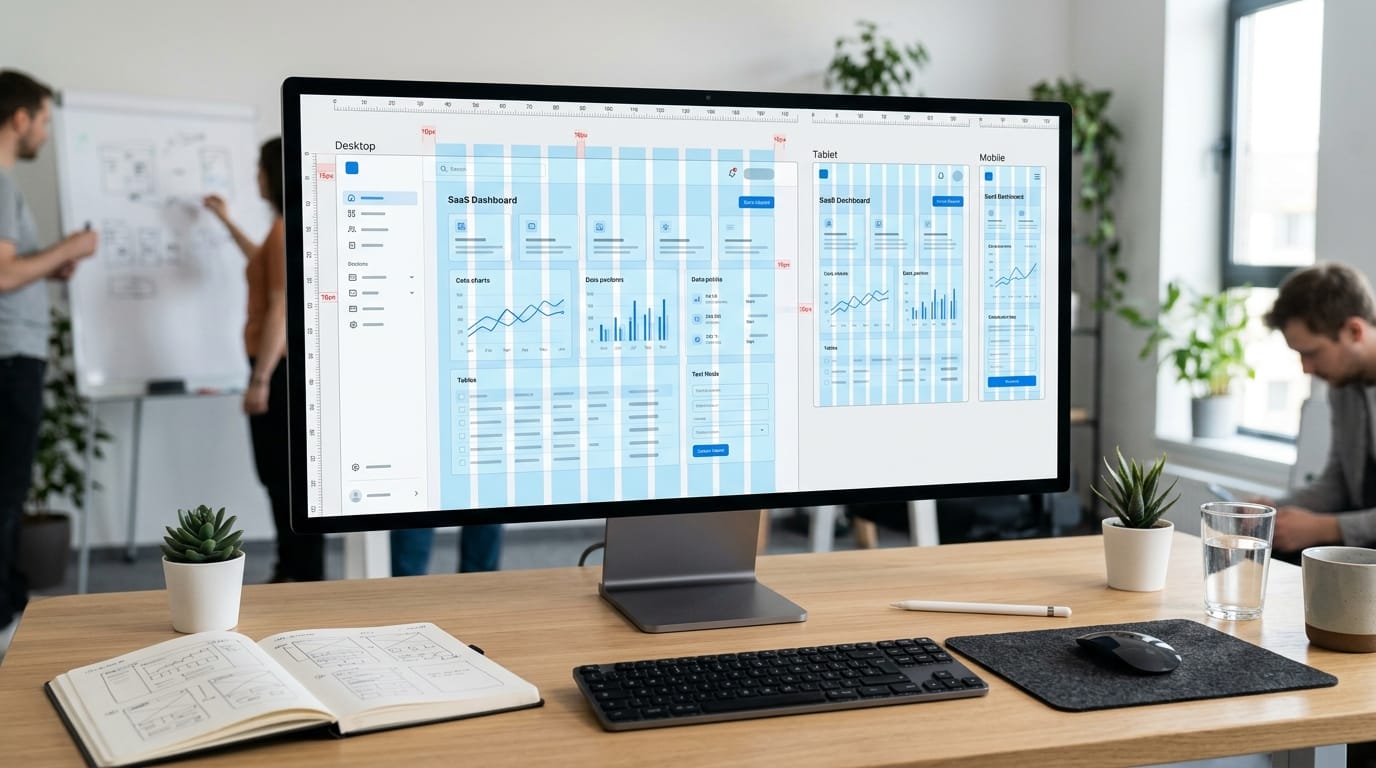
A well-structured Figma grid tutorial is one of the most valuable resources for designers who want to improve their UI design skills. While colors, typography, and components often receive the most attention, grids are the invisible foundation that keeps interfaces organized and visually balanced.
Every professional designer eventually learns that successful interfaces rarely happen by accident. Behind most great websites and mobile apps is a carefully planned grid system. This is why learning a Figma grid tutorial can dramatically improve design consistency, alignment, spacing, and responsiveness.
Whether you are designing landing pages, dashboards, ecommerce websites, SaaS platforms, or mobile applications, a grid system helps establish order and structure. In this Figma grid tutorial, you will learn how grids work, how to set them up correctly, and how to use them to create better UI layouts.
Why Every Designer Needs a Figma Grid Tutorial
Many beginner designers place elements based on visual intuition alone. While this may work for small projects, larger interfaces quickly become inconsistent without structure.
A professional Figma grid tutorial helps designers:
- Create cleaner layouts
- Improve alignment
- Build responsive interfaces
- Maintain visual consistency
- Speed up design workflows
- Improve developer handoff
- Strengthen user experience
Grid systems make design decisions easier because they provide clear visual guidelines.
Understanding Grid Systems in UI Design
Before applying techniques from a Figma grid tutorial, it is important to understand the purpose of grids.
A grid acts as a framework that helps organize content.
Benefits include:
- Consistent spacing
- Better readability
- Improved hierarchy
- Easier scalability
- Cleaner interfaces
Grids help users navigate information more naturally.
Types of Grids Used in Figma Layout Design
Several grid systems are commonly used in interface design.
Column Grid Systems
Column grids divide layouts into vertical sections.
Common examples include:
- 12-column desktop grids
- 8-column tablet grids
- 4-column mobile grids
Most responsive websites use some version of a column-based structure.
A good Figma grid tutorial always begins with understanding column grids.
Baseline Grid Systems
Baseline grids help organize typography.
Benefits include:
- Better text rhythm
- Consistent spacing
- Cleaner content presentation
These grids are especially useful for blogs, dashboards, and content-heavy interfaces.
Modular Grid Systems
Modular grids divide layouts both vertically and horizontally.
They are commonly used for:
- Ecommerce sites
- Analytics dashboards
- Content management systems
- Application interfaces
Modular grids offer maximum flexibility for complex projects.
How to Create a Layout Grid in Figma
Learning how to build grids is a key part of any Figma grid tutorial.
1. Create a Frame
Begin by creating a frame.
Popular frame sizes include:
- Desktop: 1440px
- Tablet: 768px
- Mobile: 390px
Frames provide the foundation for your layout grid.
2. Add a Layout Grid
After selecting the frame:
- Open the Design panel
- Find Layout Grid
- Click the “+” button
- Apply a grid
Figma immediately displays the grid overlay.
This is where the practical side of a Figma grid tutorial begins.
3. Convert to Columns
Most UI projects use column layouts.
Adjust settings such as:
- Number of columns
- Margin width
- Gutter size
- Alignment
These settings determine how content is organized across the interface.
Best Figma Grid Settings for Web Design
Different projects require different grid structures.
12-Column Grid Layout
The 12-column system remains the most popular layout approach.
Advantages include:
- Flexible content placement
- Responsive behavior
- Developer compatibility
- Easier scaling
Many modern websites use this framework.
Recommended Desktop Grid Configuration
Typical settings include:
- 12 columns
- 80px margins
- 24px gutters
These settings create balanced and professional layouts.
A strong Figma grid tutorial often recommends these values for desktop projects.
Figma Grid Tutorial for Responsive Design
Responsive design ensures interfaces work across multiple devices.
Mobile Grid Systems
Mobile interfaces usually use:
- 4 columns
- Smaller gutters
- Narrow margins
This structure provides enough flexibility while maintaining simplicity.
Tablet Layout Grids
Tablet designs often use:
- 8 columns
- Moderate spacing
- Flexible content blocks
Tablets require layouts that bridge mobile and desktop experiences.
Responsive Grid Best Practices
A practical Figma grid tutorial should include responsive techniques.
Best practices include:
- Designing mobile-first
- Maintaining consistent spacing
- Using scalable components
- Testing across breakpoints
Responsive grids improve usability significantly.
Also Read: Figma Web Design Guide: Responsive Layouts Made Easy
How Grid Systems Improve Visual Hierarchy
Visual hierarchy helps users understand content quickly.
Organizing Information Effectively
Grid systems help structure:
- Headlines
- Images
- Buttons
- Forms
- Navigation
Content becomes easier to scan and understand.
Improving User Experience Through Layout Structure
Well-organized interfaces feel intuitive.
Benefits include:
- Faster navigation
- Better readability
- Reduced confusion
- Improved engagement
A properly implemented Figma grid tutorial helps designers create user-friendly experiences.
Figma Grid Tutorial for Better Alignment
Alignment is one of the biggest advantages of using grids.
Creating Consistent Spacing
Grid systems help maintain consistency between:
- Sections
- Components
- Cards
- Navigation elements
- Content blocks
Consistency creates a more professional appearance.
Eliminating Visual Guesswork
Without grids, designers often place elements randomly.
A structured Figma grid tutorial eliminates guesswork by providing a repeatable system.
This results in cleaner layouts and fewer design revisions.
Using Grids with Auto Layout
Modern Figma workflows often combine grids and Auto Layout.
Why Auto Layout Works Well with Grids
Benefits include:
- Faster updates
- Responsive behavior
- Better scalability
- Improved consistency
Together, grids and Auto Layout create highly flexible interfaces.
Building Responsive Components
Using Auto Layout alongside grid systems helps create:
- Responsive cards
- Adaptive navigation
- Flexible content blocks
- Dynamic UI components
This approach is widely used in professional design systems.
Figma Grid Tutorial for Design Systems
Design systems rely heavily on grid structures.
Creating Reusable Layout Patterns
Grids help standardize:
- Landing pages
- Product pages
- Dashboards
- User profiles
- Settings pages
Consistency becomes easier to maintain across large projects.
Improving Team Collaboration
Grid systems also improve collaboration between:
- Designers
- Developers
- Product managers
Everyone works from the same visual framework.
A comprehensive Figma grid tutorial helps teams create more predictable design workflows.
Common Figma Grid Tutorial Mistakes to Avoid
Even experienced designers sometimes misuse grids.
1. Ignoring Grid Structure
Creating a grid but not following it defeats its purpose.
Always align content to the established structure.
2. Overcomplicating the Grid
Using too many columns or inconsistent spacing creates confusion.
Simple grid systems often produce better results.
3. Inconsistent Margins and Gutters
Margins and gutters should remain consistent throughout the project.
Consistency strengthens visual harmony.
Also Read: Figma For Beginners: Build A Simple App Screen Today
Advanced Figma Grid Techniques
Once you understand basic grids, you can explore more advanced approaches.
1. Nested Grid Systems
Large interfaces often require grids within grids.
Examples include:
- Dashboard widgets
- Ecommerce product sections
- Complex SaaS interfaces
Nested grids improve organization without sacrificing flexibility.
2. Combining Grids with Components
Components become more powerful when aligned to a grid structure.
Benefits include:
- Easier maintenance
- Faster scaling
- Improved consistency
This is a common practice in modern design systems.
Tools and Resources That Complement a Figma Grid Tutorial
Several resources can help strengthen your understanding of grids.
Useful references include:
- Material Design Guidelines
- Bootstrap Grid System
- Tailwind CSS Documentation
- Figma Community Resources
- Design System Libraries
These resources reinforce the principles taught in a Figma grid tutorial.
Future of Grid Systems in UI Design
Grid systems continue evolving alongside design technology.
Emerging trends include:
- AI-assisted layouts
- Adaptive design frameworks
- Component-driven interfaces
- Dynamic responsive systems
- Smart design automation
Despite new technologies, the core principles of a Figma grid tutorial remain essential because structure and usability never go out of style.
Benefits of Mastering a Figma Grid Tutorial
Designers who understand grids gain several advantages:
- Faster workflow
- Better consistency
- Stronger hierarchy
- Improved responsiveness
- Cleaner interfaces
- Better collaboration
- More professional results
Grid systems are one of the most valuable skills in UI design.
Also Read: Figma Workflow Guide for Designers Who Want Better Results
Conclusion on Figma Grid Tutorial
A strong Figma grid tutorial provides the foundation for creating professional user interfaces. By learning how to build and apply grid systems, designers can improve alignment, spacing, responsiveness, and overall visual consistency.
Whether you are designing websites, mobile applications, dashboards, or complete design systems, grids help organize information in a way that feels intuitive and user-friendly. They reduce design mistakes, improve collaboration, and create layouts that scale effectively across devices.
The more you practice the techniques covered in this Figma grid tutorial, the easier it becomes to create polished interfaces that look professional and deliver a better user experience.

For high-quality fonts to boost your income, check out DM Letter Studio. Our professional fonts are perfect for branding, marketing, and content creation. So, don’t miss this opportunity.